

Hi Everyone,
In our continued efforts to make your experience on this site enjoyable, we have added a new feature which allows you to bookmark posts / profile posts.
Below is an explanation of how the feature works. As always, if you have any questions, PLEASE FEEL FREE TO ASK.
--
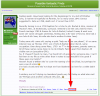
When you go to a thread (which contains posts), you will see a link below the post which simply says 'Bookmark'. On the post you want to bookmark, click on that link.:
An overlay will then appear:
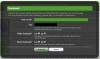
The options are fairly self explanatory, but let me explain them anyway:
So, how can you see all the posts you've bookmarked?
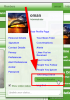
Hover over your user menu, and you will see a link which says 'Your Bookmarks':
You will be presented with a page of all your bookmarked posts and profile posts:

All posts above are for example purposes only, but you'll notice how Chimp's post is a stickied bookmark that remains at the top of my list. Then you'll notice how I've made all my bookmarks public except for the post by Ma-dotcom. Entirely up to you which bookmarks you make public and private. You'll also notice on the right of each bookmark there is the tag I set (or the category). Remembering that once you set a tag, it appears on a menu for re use when bookmarking another post. You'll also notice the page has two main sections: THREAD POSTS and PROFILE POSTS. You can bookmark profile posts as well.
The final item to note is that you are able to see another user's bookmarks (if they have any public ones) by going to their profile and clicking on the bookmarks tab:
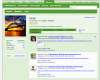
There is no limit to the amount of bookmarks you can have at once. Go nuts.
--
We look forward to hearing your feedback about this feature. Feel free to let us know if this is something you'll use. Any questions, ask in the thread below.
In our continued efforts to make your experience on this site enjoyable, we have added a new feature which allows you to bookmark posts / profile posts.
Below is an explanation of how the feature works. As always, if you have any questions, PLEASE FEEL FREE TO ASK.
--
When you go to a thread (which contains posts), you will see a link below the post which simply says 'Bookmark'. On the post you want to bookmark, click on that link.:
An overlay will then appear:
The options are fairly self explanatory, but let me explain them anyway:
- Note to self: Well, this could include why you bookmarked it, or a reminder to yourself to contact the author of the post with a question. Has many practical uses, but it is there - so use it how you please.
- Tag: This feature is basically a way to categorize your bookmarks. An example would be if you bookmarked a post that is related to 'war', you may want to tag it with war.
- Public Bookmark: Do you want your bookmark to be visible to the other members on the site, or do you want it to be private so only you can see it?
- Sticky Bookmark: If you start to bookmark a lot of posts, and want this specific post that you've bookmarked to remain at the top of your list so you can easily find it, select the yes option.
So, how can you see all the posts you've bookmarked?
Hover over your user menu, and you will see a link which says 'Your Bookmarks':
You will be presented with a page of all your bookmarked posts and profile posts:
All posts above are for example purposes only, but you'll notice how Chimp's post is a stickied bookmark that remains at the top of my list. Then you'll notice how I've made all my bookmarks public except for the post by Ma-dotcom. Entirely up to you which bookmarks you make public and private. You'll also notice on the right of each bookmark there is the tag I set (or the category). Remembering that once you set a tag, it appears on a menu for re use when bookmarking another post. You'll also notice the page has two main sections: THREAD POSTS and PROFILE POSTS. You can bookmark profile posts as well.
The final item to note is that you are able to see another user's bookmarks (if they have any public ones) by going to their profile and clicking on the bookmarks tab:
There is no limit to the amount of bookmarks you can have at once. Go nuts.
--
We look forward to hearing your feedback about this feature. Feel free to let us know if this is something you'll use. Any questions, ask in the thread below.

